You can download the backup of databases from DirectAdmin. It can be helpful for backup purposes or other uses.
1. Log in to your DirectAdmin Account.
2. In the Account Manager section, click on Databases. Alternatively, type Databases in the search bar, and the option will appear. Click on it.
3. From the list of databases, click on Manage next to the preferred database.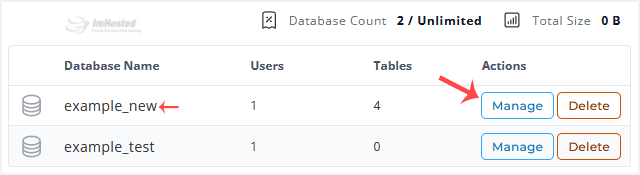
4. Scroll down to the Database Operations and click Export as GZ or Export as SQL.
5. It will prompt for a download. Please, save the backup file to your computer.
You have successfully downloaded the database backup from DirectAdmin. Keep this backup safe, as it can be useful for restoring your database if needed.