This tutorial shows you how to modify the privileges of a database user in DirectAdmin. Follow the steps below to make the necessary changes.
1. Log in to your DirectAdmin Account.
2. In the Account Manager section, click on Databases. Alternatively, type Databases in the search bar, and the option will appear. Click on it.
3. From the list of databases, click on Manage next to the preferred database.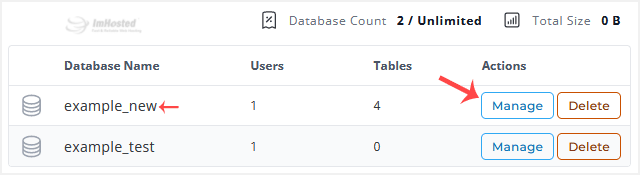
4. Under the User Access, you can find your database users. Click on Privileges.
5. Modify Privileges according to your needs and then click on Save Changes.
Your database user's privileges should have changed successfully.