You can remove backup files from your DirectAdmin to reduce disk space usage. If you are getting an error while generating a backup, such as indicating that the Backup exceeds the storage limit, it will be useful for you to remove it.
1. Log in to your DirectAdmin Account.
2. In the System Info & Files section, click on File Manager. Alternatively, type File Manager in the search bar, and the option will appear. Click on it.
3. Open the backups directory.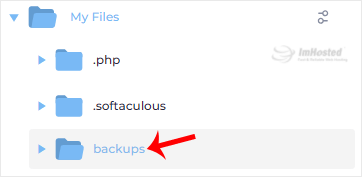
4. Right-click on the backup file and choose Remove from the Context Menu.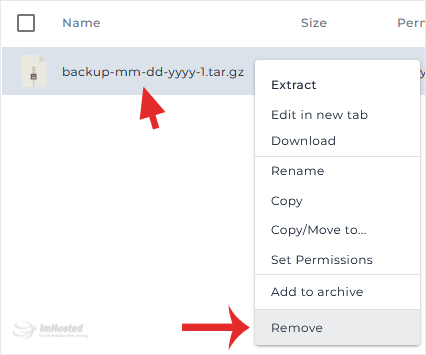
5. Click Remove again to confirm.
Congratulations. You have successfully removed the backup file.