You can check VPS specifications such as RAM, disk space, virtualization, IP Address, etc., from the Virtualizor Control Panel.
1. Log in to your Virtualizor Control Panel.
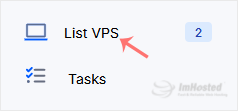
2. From the left side panel, click on List VPS.
3. Under Information you can see the allocated RAM, CPU cores, disk space, and bandwidth of your VPS.

4. To check the resource usage details of the VPS, click on the Wrench Icon next to the VPS.

5. On the Management page, you can find the VPS IP, disk usage, bandwidth, and other details.

Hope this tutorial is helpful to you.